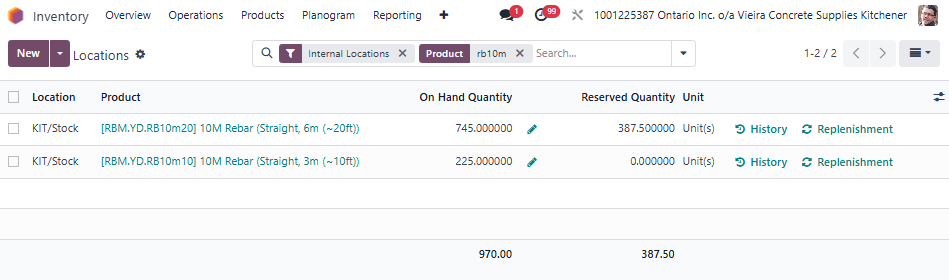
Setup
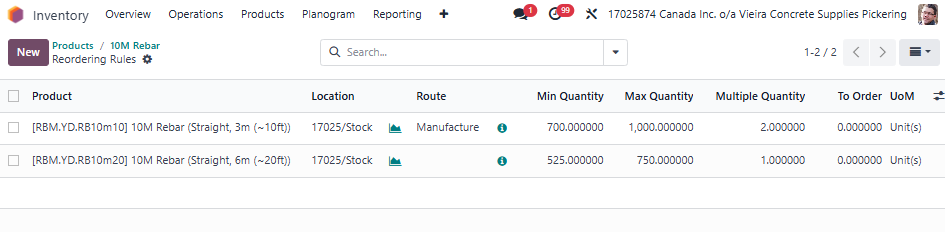
Some products such as 10ft rebar can be both purchased and manufactured. If a product can be manufactured, choose the Manufacture route on the product's Reordering Rules as shown below.
If you are expecting some Manufacturing Orders (MO) to be generated by Odoo, you will find them in the Manufacturing app. When you click on Manufacturing, you should be brought to a page called To do.
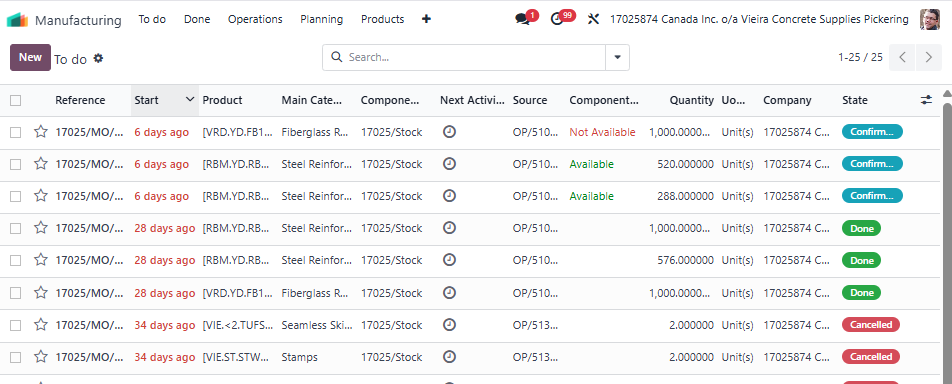
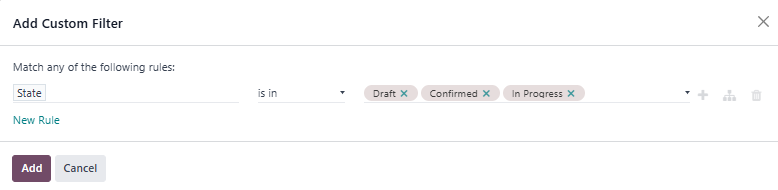
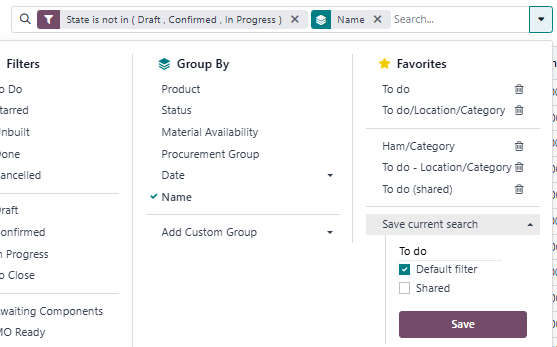
If you find a huge list of MO's like shown above, you'll want to filter this view to show only draft and confirmed MO's. Add the following filters:
- State is in Draft, Confirmed or In Progress
- Optional: Group by Name. This will group by category name.
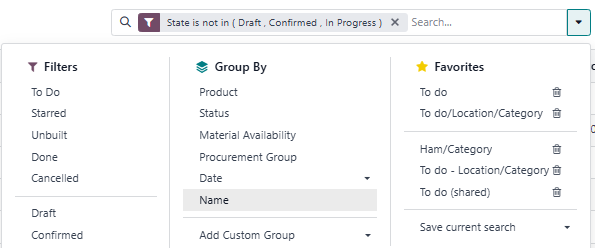
- Save this view to Favorites and make default for next time:
Modifying and Confirming a MO
If your reorder rules are setup correctly, Odoo will automatically create a Manufacturing Order in "Confirmed" state when you go below your Min level. It will appear in this To do page if you filter as per above:

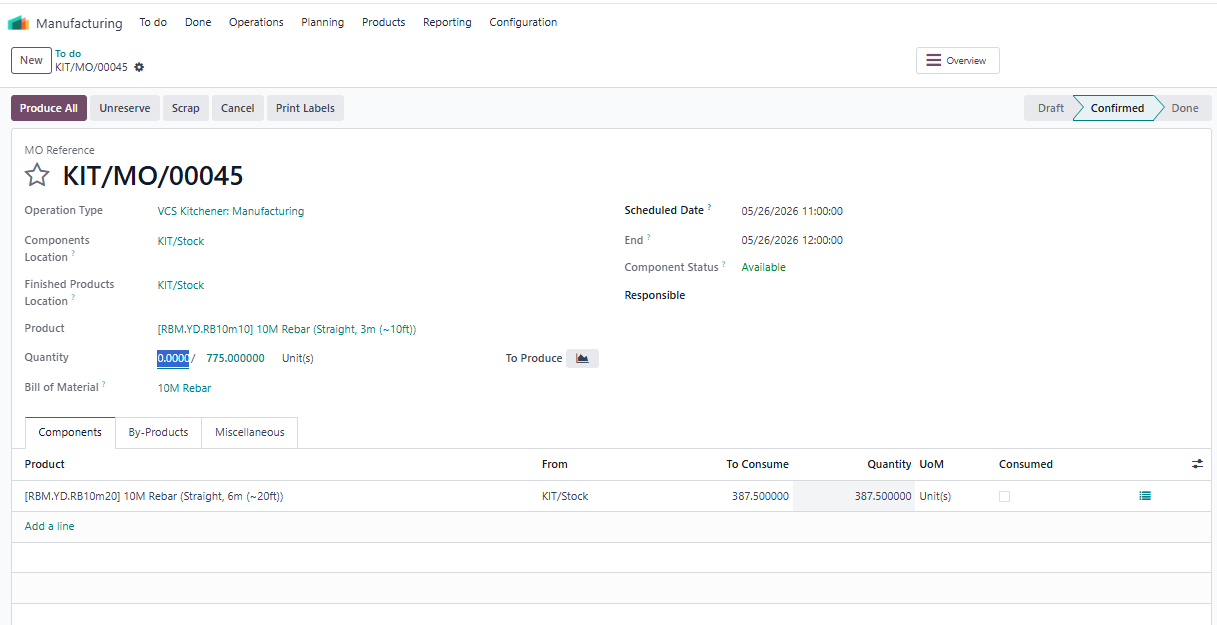
Click on the MO you want to process to enter form view. The "Components" are automatically generated at the bottom.
You only need to do 2 things:
- Modify the Quantity to the total amount of finished goods. After you do this, the "To Consume" amount(s) will change.
- Click the purple Produce All button to complete the Manufacturing Order.
Check Your Work
Always a good idea to double check that raw materials were consumed and finish goods added to inventory as you were expecting.
Go to Inventory -> Reports -> Locations
Search for the raw material and finished goods.