Theory
I. Point of Sale Workflow
If you've had experience as a cashier before in a grocery store, restaurant or other business that sells to the public, you may be familiar with a Point of Sale system (POS). The customer comes to the counter, tells you what you need, you scan or type the items, take payment, done.
To understand sales in Odoo, you need to understand that a POS sale is not one transaction. It's 4 separate business events that happen so quickly and predictably that the software can bundle them together.
THE 4 EVENTS:
- Order - the customer agrees to buy products at agreed prices
- Delivery - the customer receives the products
- Invoice - the customer is billed
- Payment - the customer pays

The advantage of POS software is that it's fast and simple.
II. Odoo: ERP Workflow
If you start asking your POS software for features like quoting, sales order confirmations, multiple deliveries, backorders, returns, lead times, payment terms, accounts receivable, you will run into limitations. These 4 business events can no longer be bundled into one and must be processed separately. If not it becomes difficult to answer the following questions:
- What was ordered?
- What has shipped?
- What remains to ship?
- What has been invoiced?
- What remains to be invoiced?
- What has been paid?
- What is still owed?
Odoo is ERP ("Enterprise Resource Planning") software and is built to handle some of the more complex situations we may run into as illustrated below.

Orders, Invoices and Payments are not the same thing.
Many people use these words interchangeably:
- "The order"
- "The invoice"
- "The receipt"
- "The PO"
In Odoo and similar ERP software, these are different documents serving different purposes.
What happens if you only...
- Cancel the sales order:
- A delivery order may have already been processed and will need to be returned for our inventory to be correct.
- We may have already invoiced the customer and will need to process a credit note - otherwise Odoo still thinks the customer owes money for this order.
- We may have already collected money from the customer that will need to be refunded.
- Cancel the delivery:
- We still have a sales order that will impact our sales reporting.
- We may have already invoiced the customer and will need to process a credit note.
- We may have already collected money from the customer that will need to be refunded.
- Cancel the invoice:
- We still have a sales order that will impact our sales reporting. The sales order should be modified to match what was invoiced.
- A delivery order may have already been processed and will need to be returned.
- We may have already collected money from the customer that will need to be refunded.
- Cancel the payment:
- No impact on our sales reporting, it will be as if we sold the products.
- No impact on our inventory, it will be as if we delivered the material
- The invoice tells Odoo that the customer still owes us money
III. Terminology in the 4 Events
- #1 Sales Order (SO)
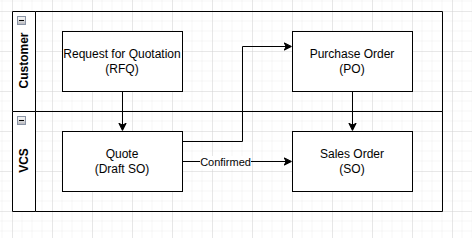
- The first part of any order is the customer's Request for Quotation (RFQ). This may a verbal list of products at the counter, an email, web order, or a formal PDF document.
- We respond by creating a Quote which is a document describing the products, services, pricing and terms. A quote in Odoo is a draft version of a sales order. In Odoo they're the same document, the difference is the status.
- If the customer agrees to the quote, we call this a Purchase Order (PO). This may be verbal (at the counter, over the phone) or written (email, e-commerce or pdf), but in one way or another, they've agreed to the products, services, pricing and terms.
- A customer's PO confirms the quote and turns it into a Sales Order. (A printed pdf version of a Sales Order is referred to as a Sales Order Confirmation in most other ERP software.)
- A confirmed sales order may be cancelled. This will cancel any draft deliveries but will not create a credit note or refund a payment.
- #2 Delivery
- When a Sales order is confirmed, Odoo automatically creates a delivery order for any physical goods. Services such as a delivery or stamp rental deposit will not be included.
- A printed copy of a delivery is called a Packing Slip.
- A delivery can have the following status:
- Waiting: Odoo detects that inventory is not available to ship
- Ready: Odoo detects that inventory is available to ship
- Done: Odoo has recorded the Inventory Move from your stock to the customer.
- Cancelled: Deliveries that are not done may be cancelled (this has no impact on the sales order, invoicing or payment)
- A completed delivery can be Returned. This creates a second delivery document where some or all of the inventory is pulled from the customer and returned to your stock.
- Deliveries to customers will have a number in the format WH/OUT/12345. Out means it left your stock. (The WH prefix may differ depending on the setup of your store - it will be the short code for your warehouse.)
- Returns will have a number in the format WH/IN/12345. In means it has been returned to your stock.
- In the case where inventory is partially shipped, Odoo will create a 2nd delivery to complete the order called a backorder.
- #3 Invoice (INV)
- An invoice is a document that tells the customer what he owes us. It is theoretically possible, although not advised, to change pricing directly on the invoice.
- Our Invoicing Policy is to invoice the entire order, although it's possible to setup Odoo to invoice only what has shipped. We've chosen this option for simplicity as we're not normally processing backorders.
- Invoices should not be cancelled for several reasons including:
- A customer may have received the invoice by email already
- Your accountant may have submitted paperwork to the government based on that invoice
- Rather than cancelling and invoice, you should create a Credit Note (RINV). A credit note tells the customer what we owe him. It's best practice to create credit notes and invoices from the sales order's create invoice button, not manually. This will ensure proper pricing, reporting and inventory moves.
- Invoices and credit notes in Odoo will never have a negative value. Below are 2 examples with fake products and no taxes for simplicity.
- Example 1: A customer returns Widget A and the price is $10 each. At the same time, the customer wants to buy one Widget B for $5 each. The line for Widget B will have a quantity of (-1) so that $5 is deducted from the credit note and the total is $5 + sales tax. Because this is a credit note, Odoo is telling us we still owe the customer $5.
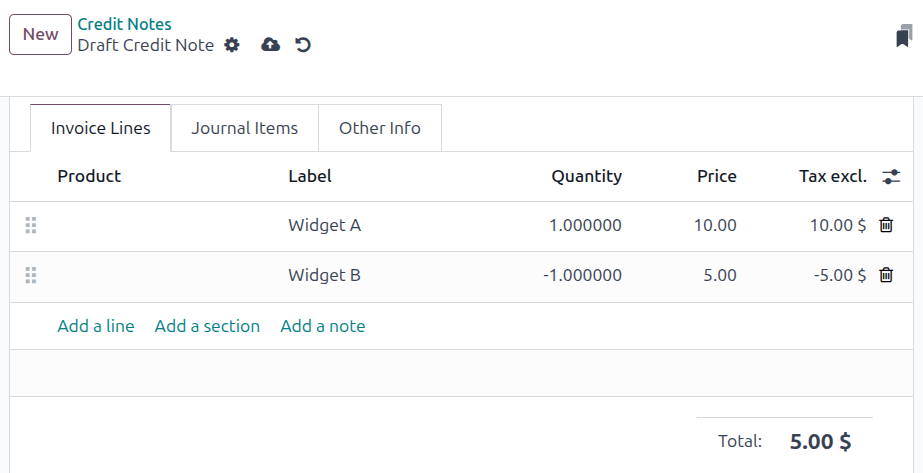
- Example 1: A customer returns Widget A and the price is $10 each. At the same time, the customer wants to buy one Widget B for $5 each. The line for Widget B will have a quantity of (-1) so that $5 is deducted from the credit note and the total is $5 + sales tax. Because this is a credit note, Odoo is telling us we still owe the customer $5.
- Example 2: A customer returns Widget A and the price is $10 each. This time, the customer wants to buy 3 x Widget B for $5 each. Odoo detects that the customer now owes us money despite the return of Widget A and converts the credit note to an invoice. Widget A now has the negative quantity. The invoice total is $5 which means the customer owes us $5.
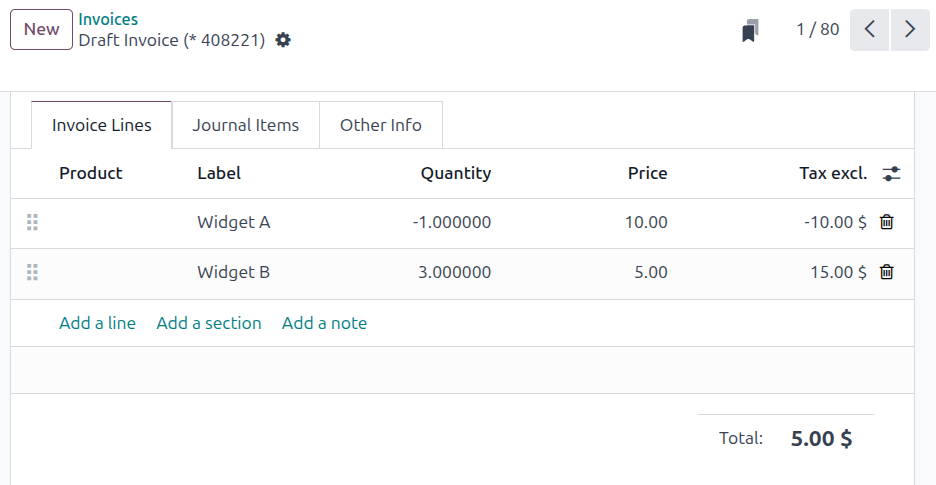
- Example 2: A customer returns Widget A and the price is $10 each. This time, the customer wants to buy 3 x Widget B for $5 each. Odoo detects that the customer now owes us money despite the return of Widget A and converts the credit note to an invoice. Widget A now has the negative quantity. The invoice total is $5 which means the customer owes us $5.
- #4 Payment
- Payment numbering will vary depending on your company's journals.
- Typically your company will have 3 Journals for receiving payment: 1) Payment processor (ie. Stripe), 2) Cash & Cheque for money that sits in your store before it's deposited, and 3) your Bank
- Within each journal there may be various payment methods.
- Your Cash & Cheque journal should have a different payment method of reach till (ie. Cash 1, Cash 2, etc.) and another journal for cheques. This allows you to sort by cash register before depositing.
- Your bank journal is typically set up with payment methods such as e-Transfer and EFT
- Payment processor payments should not be cancelled manually, this will create a reconciliation nightmare. Only use the refund button to trigger a refund from the payment processor.
- For bank and cash & cheque journals, payments may be cancelled, set to draft and edited as long as you don't change the journal. Reasons to do this would be to change the date or payment method. Then confirm when done editing to post the payment. *** You will then need to match the payment to the proper invoice. If you're not comfortable doing this, it's better to just cancel the payment and then register payment again properly ***
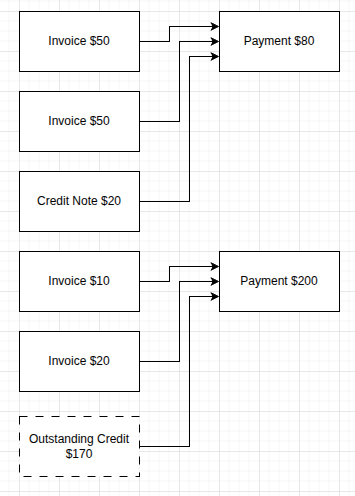
- Payments are not always matched to invoices, sometimes you need to tell Odoo which payment belongs to which invoices. This is called Reconciliation. If a customer over pays, he has an Outstanding Credit.
Practical: Using Odoo
I. In store COD sales
Sales
